How to clean up your iPhone camera roll fast
The fastest way to clean up an iPhone camera roll is to clear the bulk categories first (screenshots, duplicates and large videos) and then go through the rest one month at a time, deciding photo by photo. Several short sessions work better than one long one, because you keep making good decisions instead of skipping everything.
Before you start: check your backup and set a few rules
Make sure the photos you care about exist somewhere else. With iCloud Photos turned on, remember that deleting on the iPhone deletes in iCloud too, so iCloud is not a backup of what you remove. A copy on a computer or an external drive is.
Then decide on a few rules so you don't think about every photo from scratch. Keep the best shot of a series and delete the rest. Delete blurry photos unless they're the only picture of a moment. Delete photos you took as notes, like receipts, parking spots or price tags, once you no longer need them. Rules like these turn most decisions into a one-second swipe.
1. Delete screenshots in bulk
Screenshots pile up faster than anything else, and most of them were only useful for a minute.
- In Photos, tap Collections and scroll to Media Types.
- Open Screenshots and tap Select, then Select All.
- Deselect the few you want to keep and tap the trash button.
Screen recordings and automatic cleanup are covered in how to delete all screenshots on iPhone.
2. Merge duplicates
Photos finds exact copies for you. Open Collections > Utilities > Duplicates and tap Merge. Photos keeps the best version and moves the extra copies to Recently Deleted. The Duplicates album only appears when Photos has found some. More detail in how to delete duplicate photos on iPhone.
3. Clear out the biggest videos
A few long videos often take more space than your entire photo collection from a year. Find your largest photos and videos and decide about those before anything else.
4. Swipe through the rest month by month
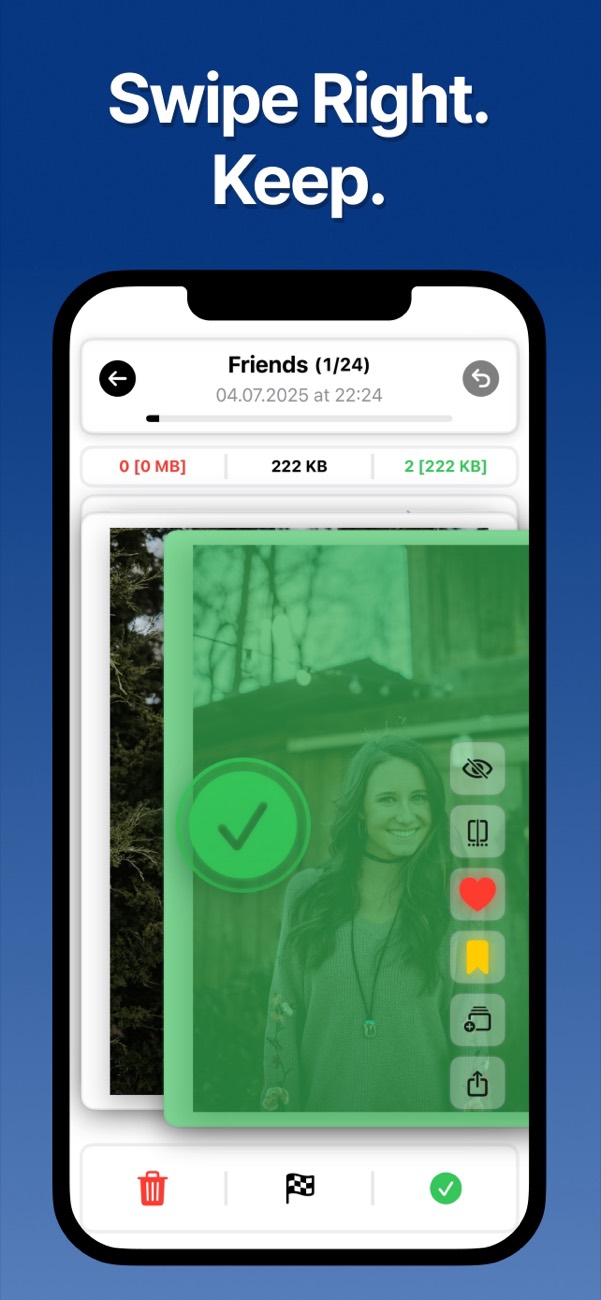
What's left are the photos that need a real decision: the twelve near-identical shots of a sunset, the blurry ones, the photos of a parking spot. Selecting them in a grid is slow and tiring. Seeing one photo at a time and deciding with a swipe is much quicker.
- Open Unroller and pick a month, starting with the most recent one.
- Swipe left to delete and right to keep. Your choices go into a review list, nothing is deleted yet.
- At the end of the month, check the list and delete the photos you marked.
- Unroller crosses the month off and remembers where you stopped, so you can do one month a day.
5. Empty Recently Deleted
Everything you deleted sits in Recently Deleted for 30 days and still uses storage. When you're done, open Collections > Utilities > Recently Deleted and delete all. If your storage doesn't go down afterwards, read why iPhone storage stays full after deleting photos.
Keep the camera roll from filling up again
Delete screenshots right after you share them: tap the preview after taking one, tap Done (a check mark on newer iOS versions) and choose Delete Screenshot. In WhatsApp, turn off Settings > Chats > Save to Photos so every image from group chats doesn't land in your library. And when a new month starts, spend five minutes swiping through the last one.
Questions
Is it safe to clean up my camera roll with an app?
Apps that use Apple's Photos framework delete through the same system as the Photos app, so deleted items go to Recently Deleted and stay recoverable for 30 days. Also check that the app processes photos on the device. Unroller never uploads your photos.
What should I delete first to free up the most space?
Videos, because one long 4K video can be as big as hundreds of photos. After that, duplicates and screenshots, then everything else month by month.