How to delete all screenshots on iPhone at once
To delete all screenshots on iPhone at once, open Photos, go to Collections > Media Types > Screenshots, tap Select, then Select All, and tap the trash button. Then empty Recently Deleted, because deleted screenshots keep using storage there for 30 days.
Delete every screenshot in a few taps
- Open the Photos app and tap Collections (Albums on older iOS versions).
- Scroll to Media Types and tap Screenshots.
- Tap Select, then Select All.
- Tap the trash button and confirm.
- Open Collections > Utilities > Recently Deleted and delete them there too.
If you have thousands of screenshots, Photos can take a moment to select them all. Wait until the counter at the top stops before you tap the trash button.
Keep the screenshots you still need
Boarding passes, receipts and confirmation codes are easy to delete by accident. The quick way: before you select everything, mark the few you want to keep as favorites. Then Select All, scroll through and deselect the ones with a heart. Or simply deselect them one by one.
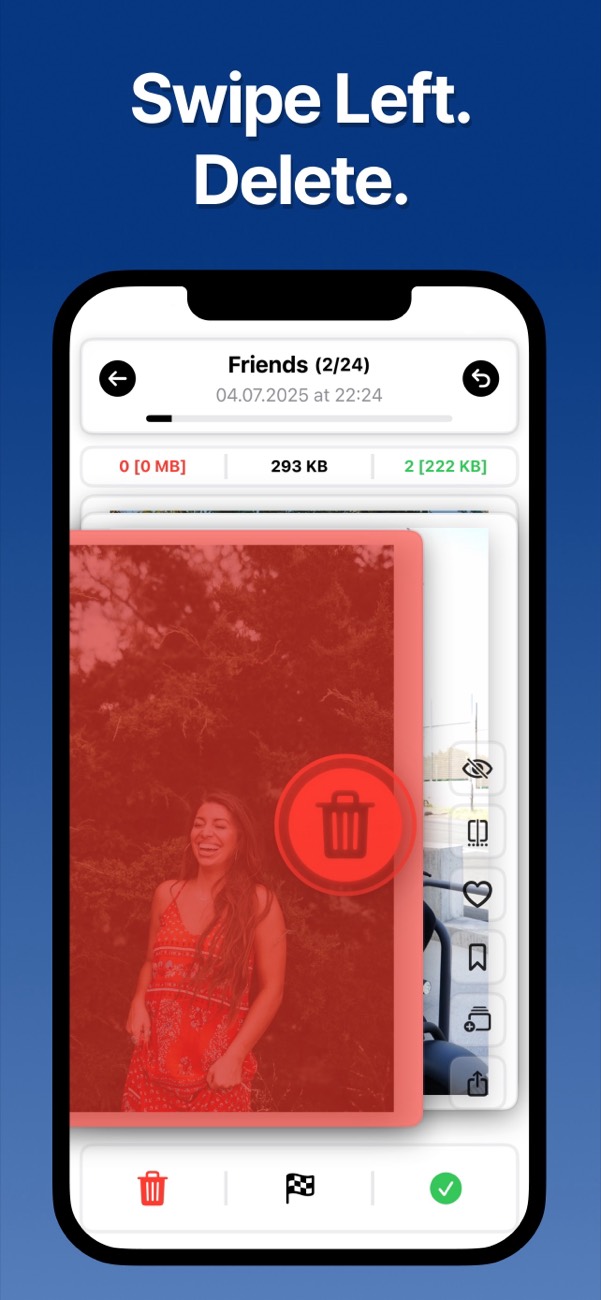
If you want to decide about each screenshot, swiping is faster than tapping through a grid. In Unroller, open Categories and pick Screenshots, then swipe left to delete and right to keep.
Don't forget screen recordings
Screen recordings live in their own album under Media Types, and they are much larger than screenshots. A few minutes of recording can take hundreds of megabytes. Clear them the same way: open Screen Recordings, tap Select, then Select All, and delete.
Find screenshots that aren't in the Screenshots album
The Screenshots album only holds screenshots you took on this iPhone. Screenshots that friends sent you in WhatsApp or Messages and that you saved count as normal photos, so they hide in your library between everything else. The same goes for screenshots from an old phone that came over through a computer import.
Searching helps here. Type a word you remember from the screenshot into the Photos search, like a shop name or "receipt", and Photos finds pictures that contain that text. Going through your library month by month catches the rest, because screenshots are easy to spot when you see one picture at a time.
Delete old screenshots automatically
The Shortcuts app can clean up for you. Create a shortcut with a Find Photos action filtered to Is a Screenshot and a creation date older than 30 days, followed by a Delete Photos action. Run it from a personal automation once a week.
Two limits: iOS asks you to confirm before Shortcuts deletes photos, so it isn't fully hands-free. And screenshots that someone sent you and you saved don't count as screenshots, so the filter skips them.
Stop screenshots from piling up
Delete a screenshot right after you've used it: tap the preview after taking it, tap Done (a check mark on newer iOS versions) and choose Delete Screenshot. You can also choose Save to Files for screenshots you want to keep but not see in your photo library.
For the rest of your camera roll, see how to clean up your camera roll fast.
Questions
Does deleting screenshots free up space on iPhone?
Yes, once you also delete them from Recently Deleted. A single screenshot is small, but thousands of them add up, and screen recordings take much more space.
Can I stop my iPhone from saving screenshots to Photos?
There is no setting that keeps screenshots out of Photos entirely. After taking one, you can tap the preview, tap Done and choose Save to Files or Delete Screenshot instead of saving it to your library.