How to find and delete duplicate photos on iPhone
On iOS 16 and later, the Photos app finds duplicate photos for you. Open Collections, scroll to Utilities and tap Duplicates, then tap Merge on each pair or select them all and merge them at once. Photos keeps one copy with the best quality and moves the rest to Recently Deleted. It only catches photos that are identical or almost identical, so similar shots of the same moment need a second pass.
Merge duplicates in the Photos app
- Open Photos and tap Collections (Albums on older iOS versions).
- Scroll to Utilities and tap Duplicates.
- Tap Merge next to a set, then confirm with Merge Exact Copies or Merge Items.
- To merge everything, tap Select, then Select All, then Merge at the bottom.
- Open Recently Deleted and delete the extra copies to get the space back.
Merging is not the same as deleting one copy by hand. Photos combines the information from both items, like album membership and keywords, into the copy it keeps. With iCloud Photos turned on, the merge applies on all your devices.
Why the Duplicates album is missing
The Duplicates album only appears once Photos has indexed your library and found at least one duplicate. Indexing runs in the background while the iPhone is locked and connected to power, so after an update or a large import it can take a night or two. While it's still running, a status message shows at the bottom of your library.
If the album never appears, Photos hasn't found anything that counts as a duplicate. Its rules are strict on purpose: it looks for the same image, sometimes in a different resolution or format, not for two photos that just look alike.
Clean up similar photos the built-in tool misses
Most of the clutter isn't exact copies. It's the eight shots you took to get one good group photo, or the same sunset from slightly different angles. Photos treats those as different pictures and leaves them alone.
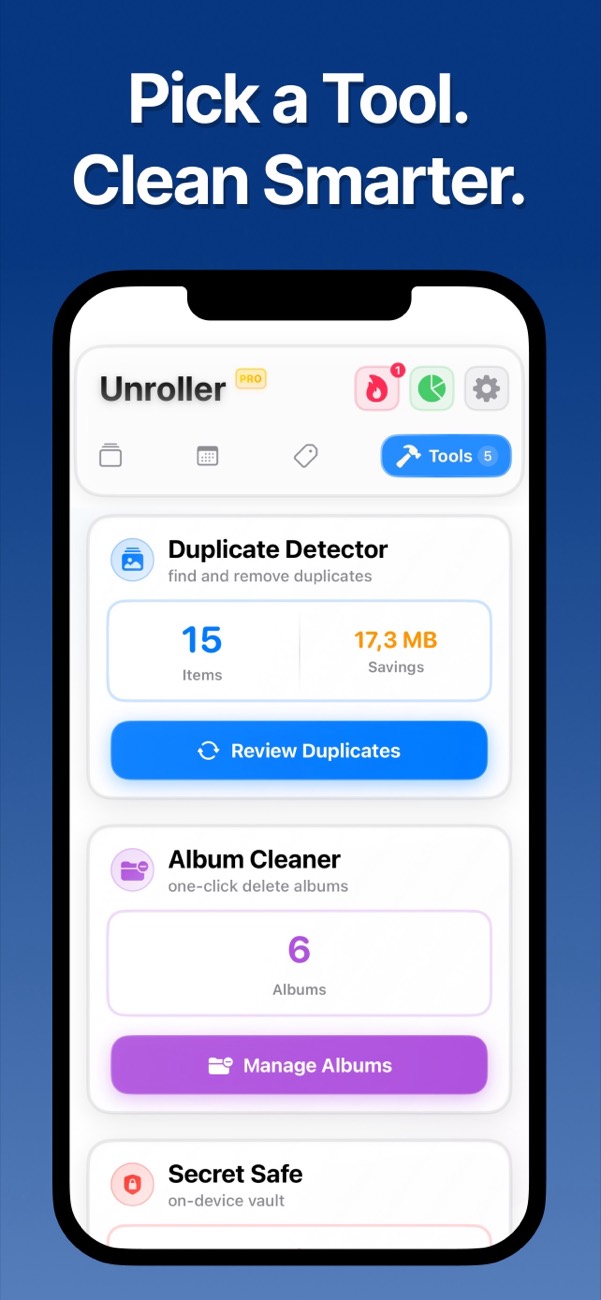
Unroller has a duplicate finder that also groups similar photos, so you see the shots of one moment side by side and can keep only the best one.
- Open Unroller and tap Tools.
- Open the Duplicate Detector and tap Review Duplicates.
- Go through the groups and choose which photos to delete.
- Confirm the deletion. The photos go to Recently Deleted for 30 days.
Bursts and Live Photos
Burst photos sit in one stack that looks like a single picture. Open Collections > Media Types > Bursts, open a burst, tap Select, pick the frames you want and tap Done, then choose Keep Only Favorites. Live Photos aren't duplicates, but each one stores a short video next to the photo, so they take roughly twice the space of a normal photo.
When you're done, empty Recently Deleted. If the storage number doesn't change, read why iPhone storage stays full after deleting photos.
Questions
Does merging duplicates on iPhone lose any photos?
No. Photos keeps the highest-quality version and combines the details of both copies into it. The extra copies go to Recently Deleted, where you can restore them for 30 days. As with any large cleanup, keep a backup before merging hundreds of items.
Why doesn't my iPhone find all my duplicates?
The built-in tool only flags identical or nearly identical images. Similar photos taken a second apart count as different pictures. For those you need to compare them yourself or use an app that groups similar shots.