How to sort iPhone photos by size and find your largest files
The Photos app can't sort your library by file size. You can check the size of one photo or video at a time in its Info panel, and you can filter your library to videos, which are almost always the largest files. To see your biggest files in a single list, you need an app such as Unroller.
Check the size of a single photo or video
- Open the photo or video in the Photos app.
- Swipe up, or tap the Info button (i).
- The panel shows the file size along with the resolution and camera details.
That is useful for checking one suspicious file, but not for finding the largest ones among thousands.
Look at your videos first
Videos are where the storage goes. One minute of 4K video at 60 fps uses about 400 MB in the default High Efficiency format, while a typical photo is a few megabytes. Slo-mo and Cinematic videos are large for their length too.
In Photos, tap Collections, scroll to Media Types and open Videos to see only your videos. Each thumbnail shows the length of the clip, which is a decent stand-in for its size.
Sometimes Settings > General > iPhone Storage also shows a recommendation called Review Personal Videos. It lists your videos by size and lets you delete them right there. It only appears when iOS thinks it will help, and it doesn't include photos.
See how much space your whole library uses
Open Settings > General > iPhone Storage and tap Photos. The total includes everything in your library plus whatever is still waiting in Recently Deleted. Write the number down before you start, so you can see what the cleanup actually saved. If Photos turns out to be small compared to your apps, sorting photos by size won't free much, and the other items in that list deserve a look first.
Sort photos and videos by size with Unroller
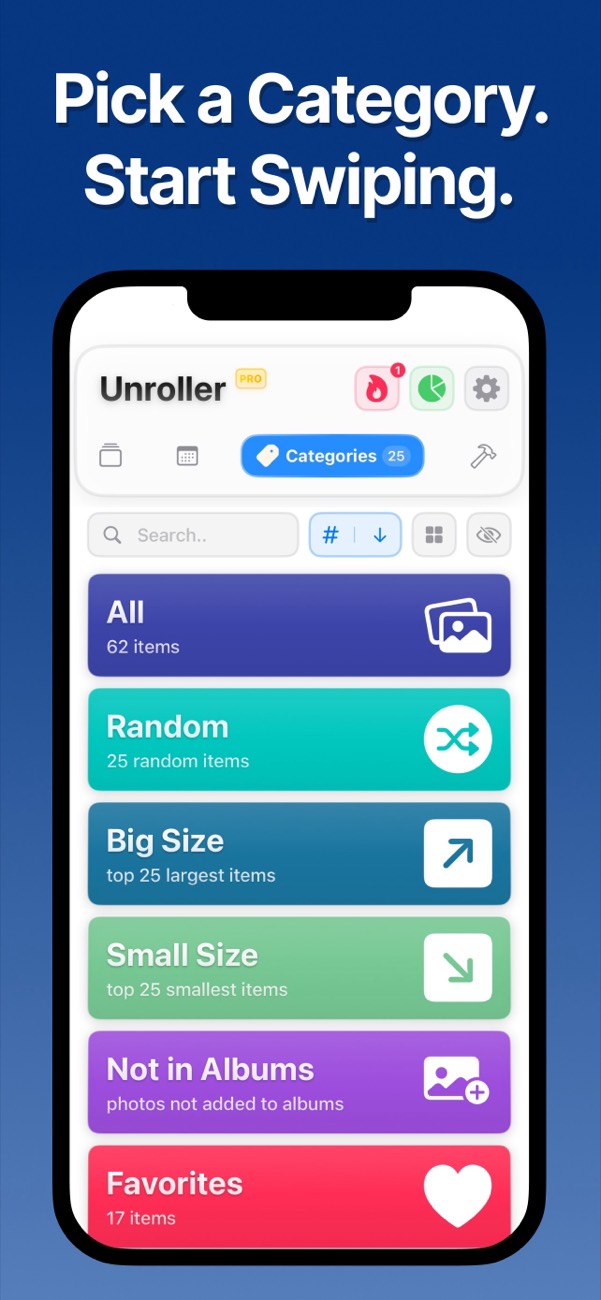
Unroller has a Big Size category that lists your largest photos and videos first, so you can decide about the files that free the most space.
- Open Unroller and allow access to your photos.
- Tap Categories and choose Big Size.
- Swipe left on files you don't need and right on the ones you keep. The counter at the top shows how much space you have marked.
- Review your selection and delete. The files move to Recently Deleted, where you can restore them for 30 days.
Other large files hiding in your library
Live Photos store a short video next to each still image, so they take roughly twice the space of a normal photo. Screen recordings are easy to forget and can run to hundreds of megabytes. Duplicates add up quietly as well: Photos collects exact copies in Collections > Utilities > Duplicates, where you can merge them.
Before you delete a long video you might want later, copy it somewhere else first: AirDrop it to a Mac, or save it to an external drive through the Files app. If you want to keep a video on the phone but not its size, Unroller's video compressor makes a smaller copy.
Once you've deleted the big files, empty Recently Deleted to get the space back. If the storage number still doesn't change, see why iPhone storage stays full after deleting photos.
Questions
Can I see the total size of several selected photos on iPhone?
Not in the Photos app, which shows the size of one item at a time. In Unroller, the counter at the top shows how much space the photos you marked for deletion take up.
How do I make iPhone videos smaller in the future?
Go to Settings > Camera > Formats and choose High Efficiency, which takes about half the space of Most Compatible. In Settings > Camera > Record Video, 1080p at 30 fps uses far less space than 4K at 60 fps.